Recently I made a switch from Fedora 44 Workstation KDE to Fedora 45 Workstation Gnome edition. It was a clean install with no backups and everything went great.
But after 2 days there was a problem. Some apps I installed from Gnome Software was refusing to run when I click on them. And as any experienced Linux user would do, I tried to run them from command line to see if it gave me any error messages.
The apps that was refusing to launch was FreeCAD, Lunacy and Zoom. And when I tried to launch them from command line, only the FreeCAD gave me an error message and others just left me with a blank screen.
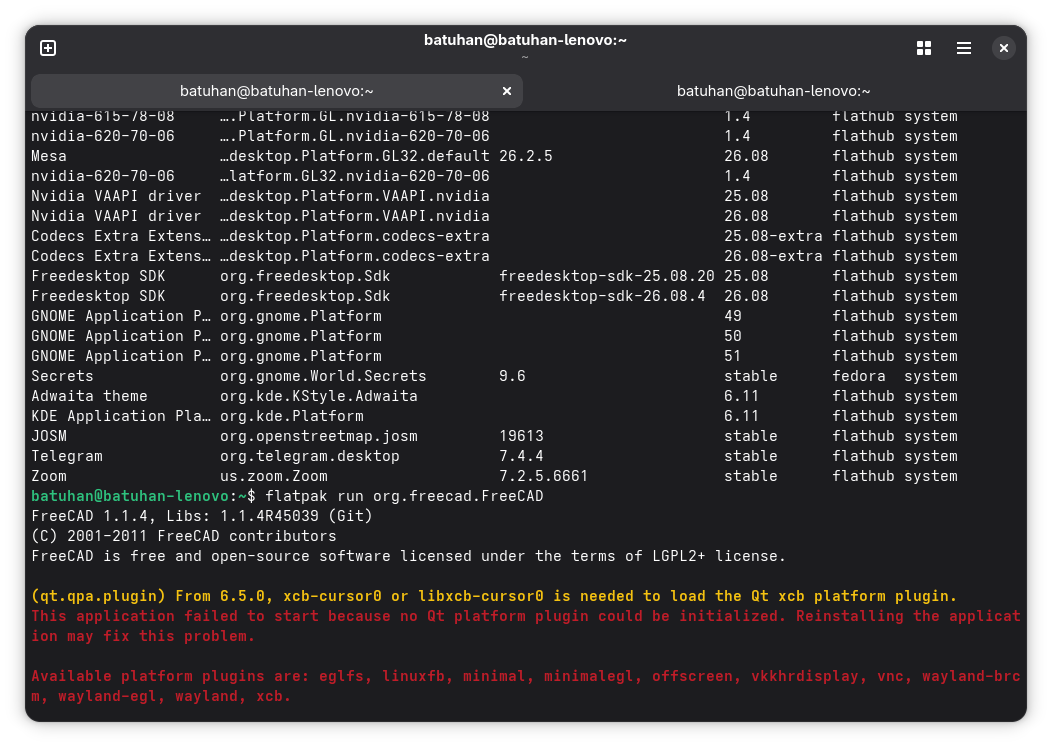
At first, I just thought I didn't had those libraries installed and tried to install them with dnf package manager but when I did this, I found out I already had those packages installed.
So I made a small DuckDuckGo search and found out that those packages didn't had the right environment flags to launch using X11 and instead they were trying to start using Wayland. Which makes them fail to launch.
The solution is pretty simple. You just need to set the right environment flags either using the command line or the Flatseal application.
Flatseal Solution
If you have the Flatseal application installed on your system, open it and find the application that refuses to start. In my case FreeCAD.
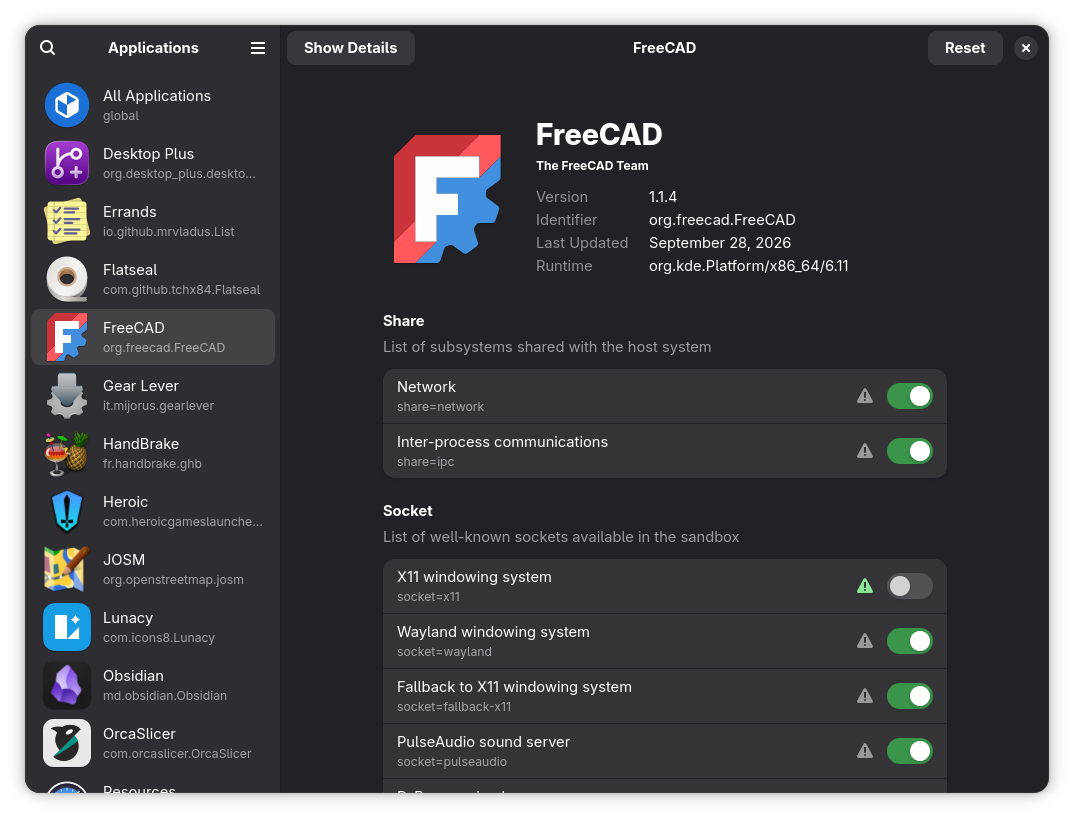
After that, under the Socket list, enable the option titled X11 Windowing System. This will allow our application to run using X11 if Wayland doesn't works.
After that scroll down to Environment list, click plus button and paste the variable below.
QT_QPA_PLATFORM=xcb
This will allow our application run with QT XCB Platform.
Aand it's done! Now when you run the application everything should work as designed.
Command Line Solution
If you don't have the Flatseal application installed on your system, don't worry. The command line solution is just simple as the Flatseal one.
First you need to learn the application ID. To do that list the installed applications over Flatpak and locate the application thats been refusing to start with the command below.
flatpak list
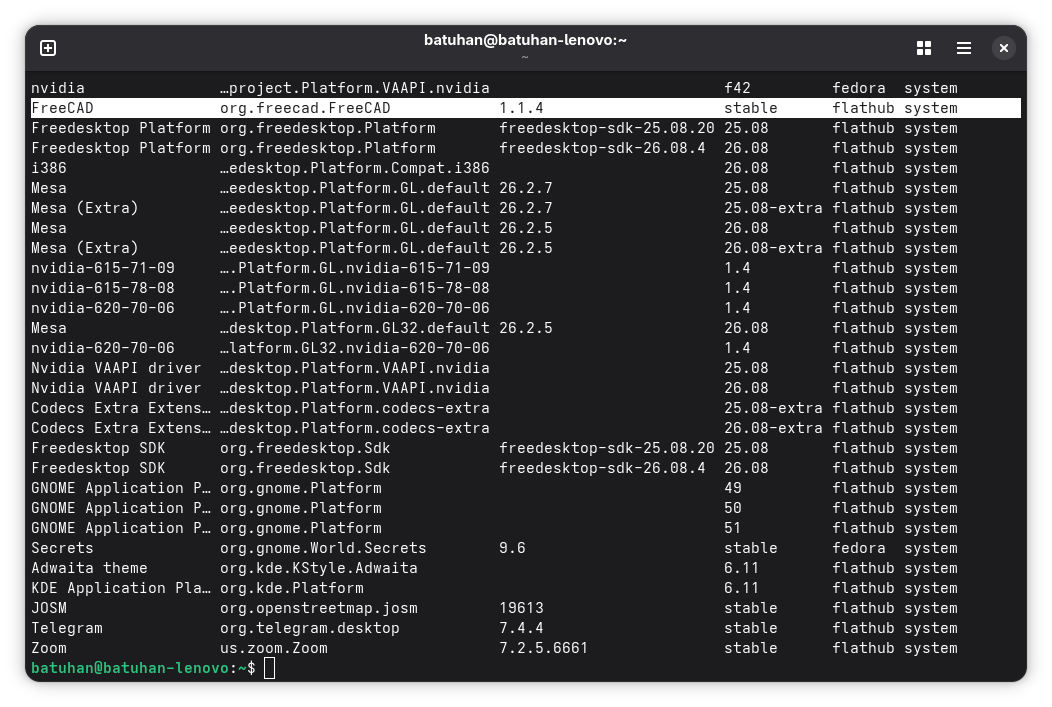 In my case I highlighted the FreeCAD. Now after locating the application, copy text that looks similar to a url. Thats your application ID.
After that run the command below with your application ID to enable the X11 and QT XCB platform.
flatpak override --user --env=QT_QPA_PLATFORM=xcb --socket=x11 <application_id>
After that, run the application using the command line with the command below and see if it gives out any error messages.
flatpak run <application_id>
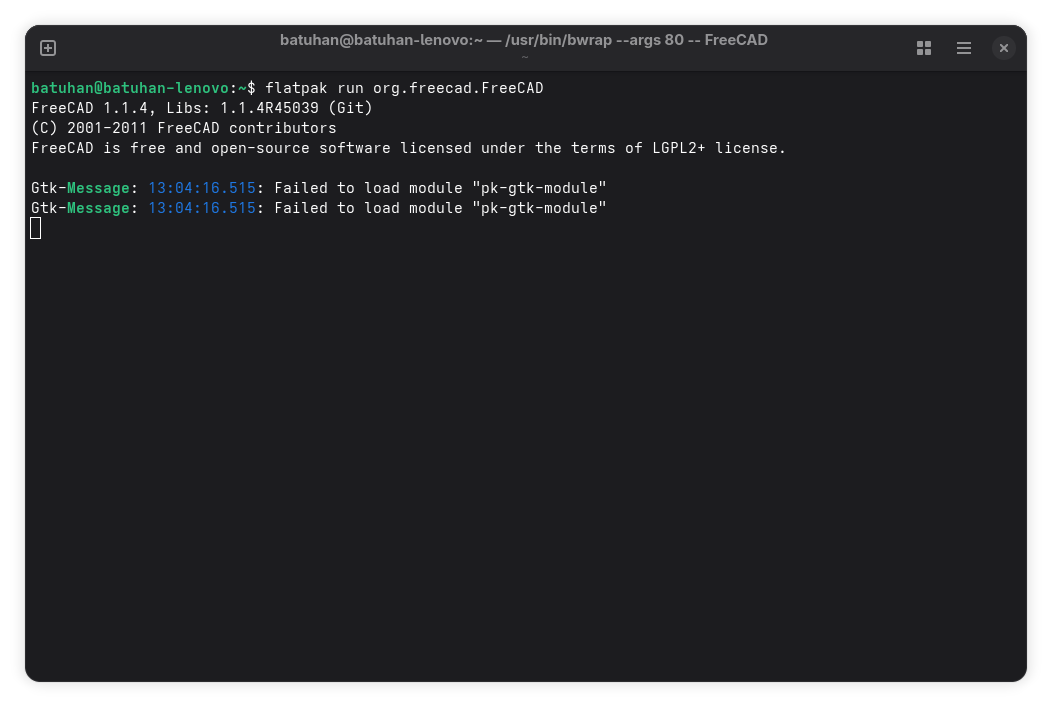
And just like that! As you can see, the error message we were getting before has gone and application has started right up!
I tested this solution with Lunacy and Zoom and both got up and running just like they did before.
I hope this helps! If you have any questions, give me a reply over e-mail!
Thanks for checking out, as always see you in the next one!
Reply via E-mail
Thank You!
23.11.2026 - 005/100